Vibe Coding
What is Vibe Coding?
Definition: Using AI to translate intent into working software through iterative collaboration.
- AI accelerates implementation: The bottleneck is no longer writing the syntax.
- Human ownership: The human still entirely owns the requirements, architecture, and final quality control.
Why it Matters for Hackathons
- Faster iteration: Spend less time fighting bugs and more time refining product-market fit and UX.
- Smaller teams can build more: One or two developers can launch a feature-complete product over a single weekend.
The Vibe Coding Stack
- LLMs: ChatGPT, Claude
- AI IDEs & Tools: Cursor, Copilot, Bolt, Lovable
Demo Setup
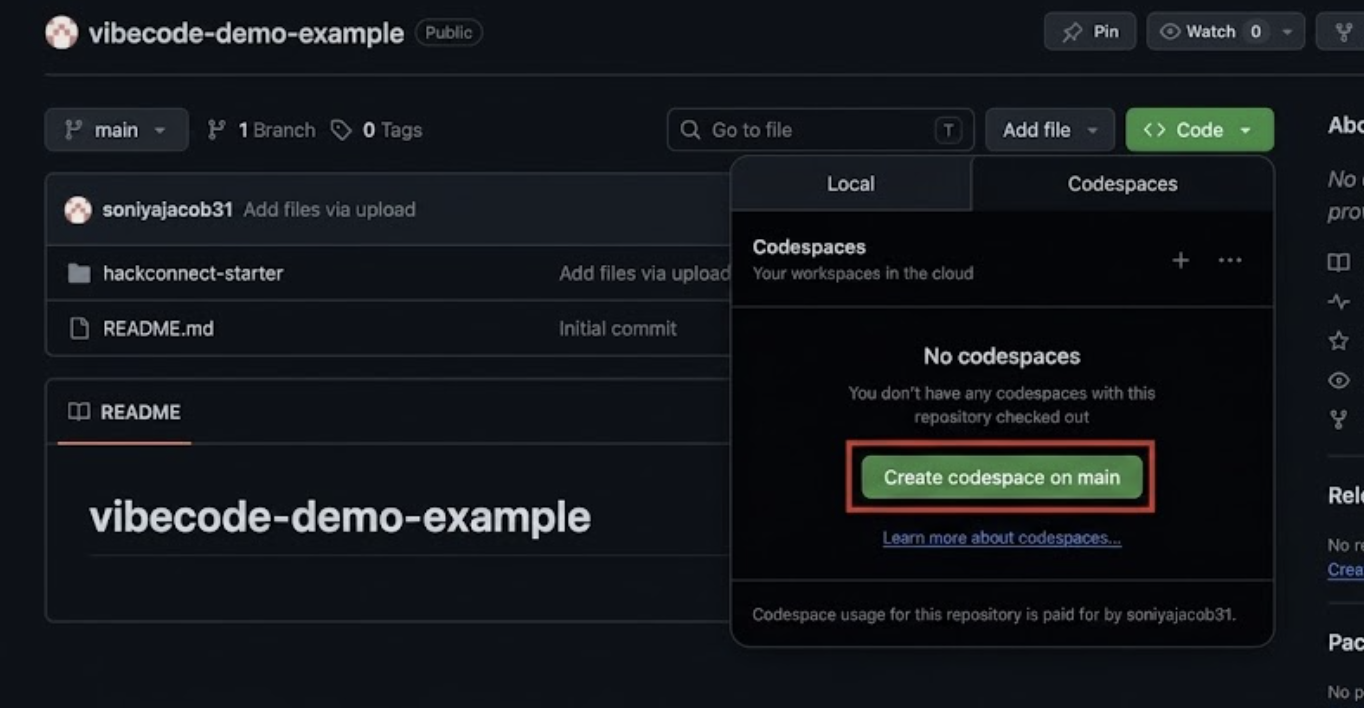
1. From the repository, select Code, then Create codespace on main
2. In the codespace terminal, enter cd hackconnect-starter && npm install && npm run dev
3. Then, open localhost in a separate browser
Mini Demo 1: Prompt Engineering (Vague)
Goal: Show that a vague prompt forces the AI to guess the framework, layout, content, and style.
1. Paste a Vague Prompt
In a fresh Copilot chat, paste:
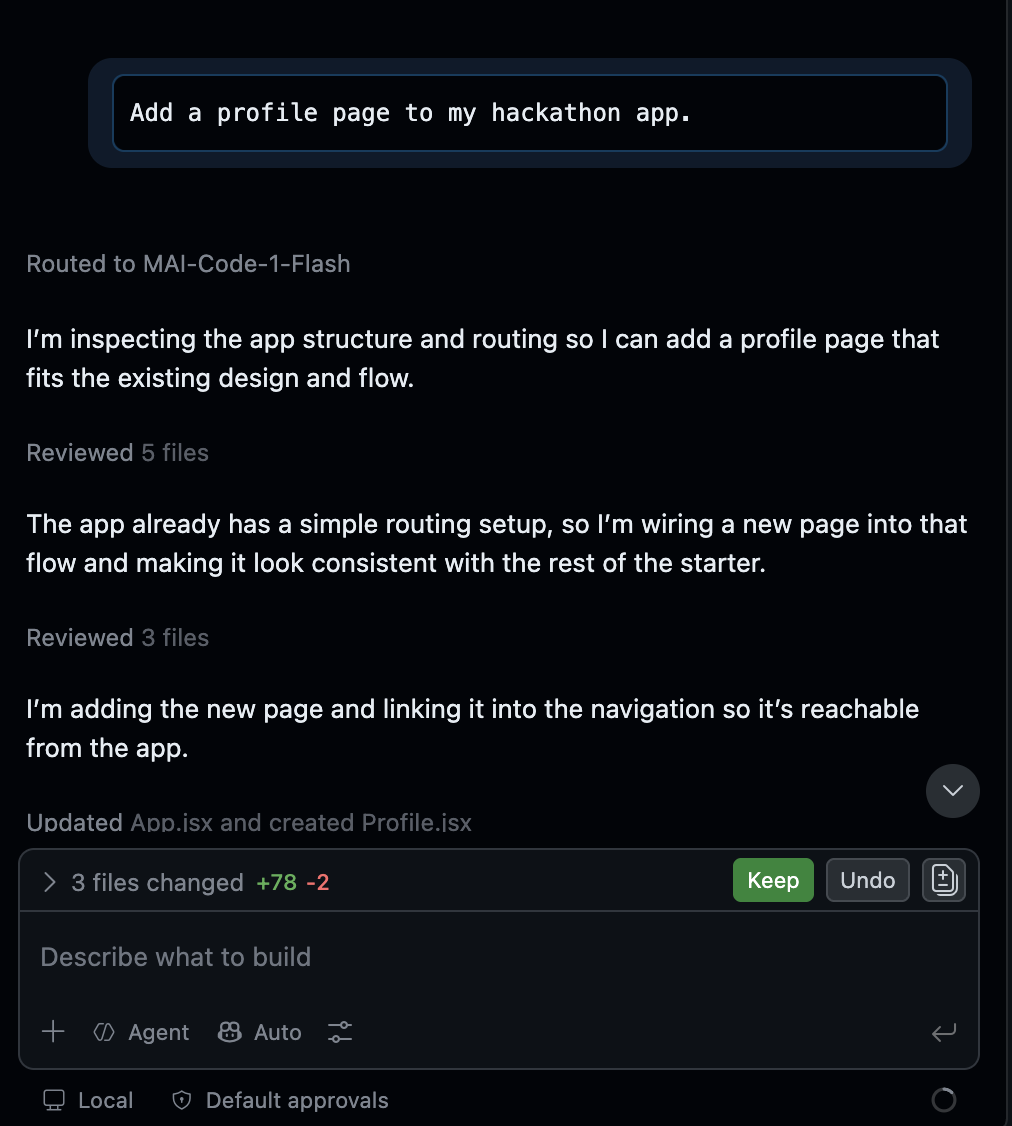
Add a profile page to my hackathon app.
2. Watch What Happens
-
Copilot can open your repo, find React Router, create
Profile.jsx, and wireApp.jsx+Navbar.jsxwithout you pasting anything. -
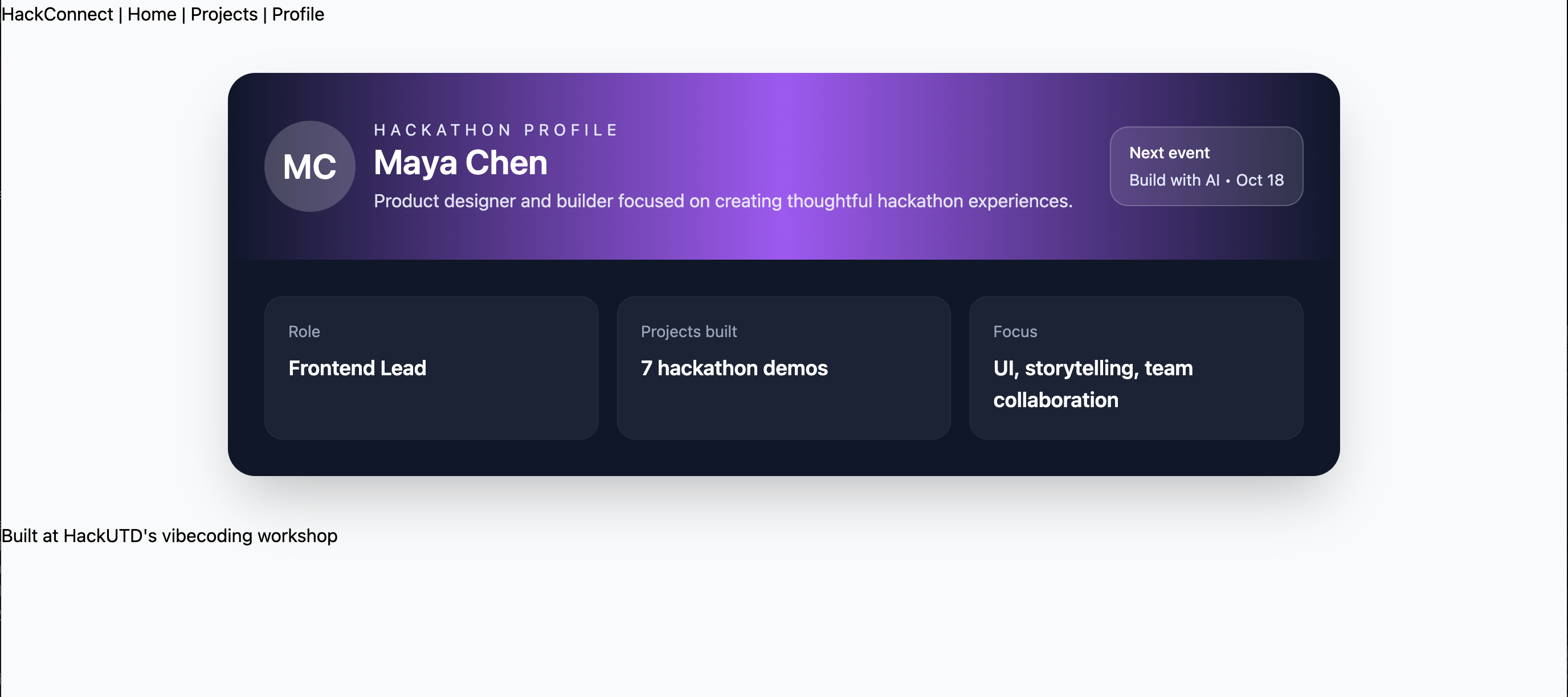
Copilot, or the AI of your choice, invents the page content. Profile header, bio, location, stats, skills, badges. Things you never asked for. The AI filled in a generic "profile page" idea.
-
It also invented the look. The rest of HackConnect is intentionally bare (almost no CSS). Copilot still reaches for Tailwind classes and builds a polished card layout, because Tailwind is in the project and a "profile page" usually looks designed. So Profile looks styled while Home / Projects stay plain, inconsistent on purpose.
-
That's the lesson: without telling it your stack details or file/style rules, the AI guesses a look that doesn't match your existing site.
3. Compare in the Browser
Open the Profile page and compare it to Home / Projects. Does it feel like the same website?
Key Concepts: Managing your Context
The Context Window
Requirements + Code + Chat History + Files = Context Window
Everything competes for attention inside an LLM's memory. Every new message carries previous context
(Message 1 → sends 1; Message 2 → sends 1 + 2). As the chat history grows:
- Focus decreases
- Consistency drops
- Quality decreases
Context Rot
Why AI Starts Getting Weird
When an AI model starts losing its focus under a heavy context load, it isn't broken—it's experiencing Context Rot.
Watch out for these symptoms:
Tokens
What is a Token?
AI doesn't see words; it breaks down text into chunks called tokens.
"hello"≈1 token"Build a React dashboard"≈4-5 tokens
Token Efficiency Best Practices
To keep costs low, focus sharp, and prevent early context rot:
- Give complete requirements upfront.
- Attach only relevant files.
- Avoid repeatedly pasting the exact same information.
- Use summaries and clear project documentation.
💡 Tip: If you are using Claude, type
/compactin your chat. This prompts the AI to summarize your message history into fewer tokens, instantly freeing up memory workspace.
Skills
What are Skills?
- Definition: A reusable instruction set that teaches an AI exactly how you want work done.
- The Analogy: A Prompt is like a direct function call; a Skill is the underlying system instruction file that the AI reads every single time.
Why Skills Matter
- Without Skills: You have to manually explain your architectural preferences and rules every time you open a new chat.
- With Skills: You reuse custom instructions automatically, saving tokens, ensuring strict output consistency, and accelerating developer onboarding.
Skill Examples
- React Engineer Skill: "Always use TypeScript, use Tailwind CSS, add descriptive comments, and write automated tests."
- Hackathon Judge Skill: "Always evaluate submissions based on Novelty, Feasibility, and Demo quality."
Mini Demo 2: Using Instructions as a Skill
Goal: Show that the same request produces very different results once the AI is given written style/process rules, and that a random INSTRUCTIONS.md in Codespaces is not auto-loaded the way a real Claude Skill would be.
1. Ask Without Any Style Guidance
In the Copilot chat, paste:
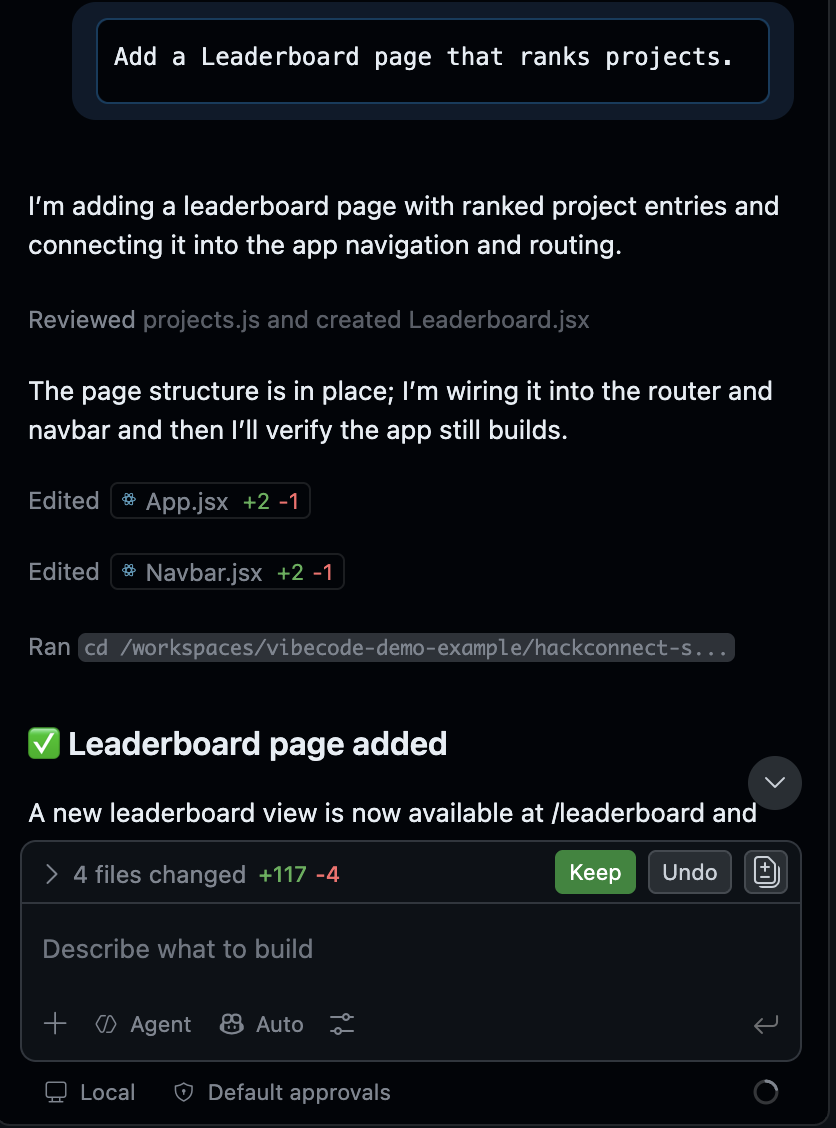
Add a Leaderboard page that ranks projects.
-
Copilot can still inspect the repo and wire a page into routing/nav.
-
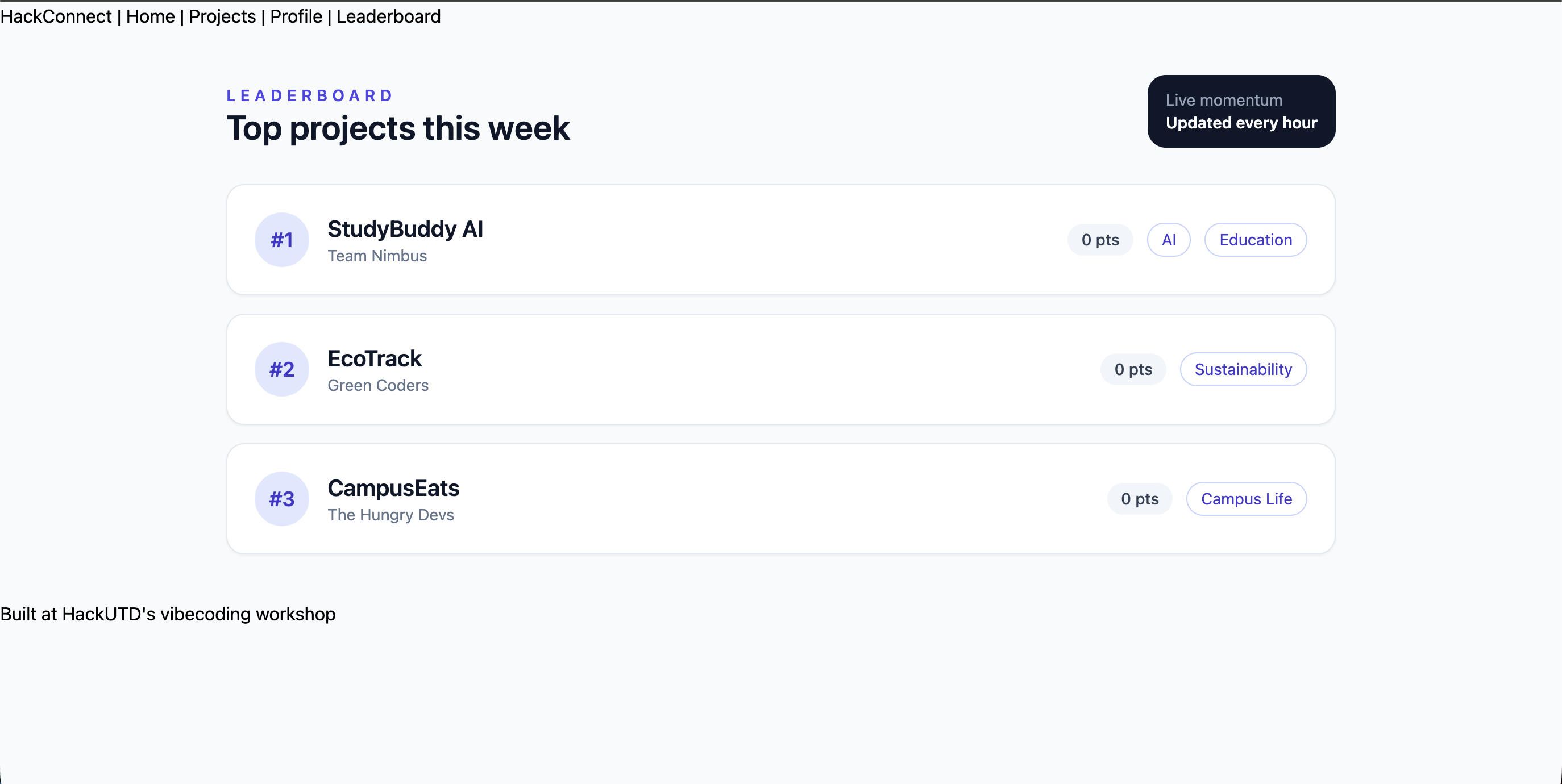
Without style rules, it guesses again. Layout, colors, and structure may not match Home / Projects / Profile.
-
Compare the new Leaderboard to the rest of the site: same app, mixed looks.
2. Ask Again With INSTRUCTIONS.md Attached
-
Add INSTRUCTIONS.md to the root of
hackconnect-starter/(same folder asREADME.mdandpackage.json). -
Open
INSTRUCTIONS.mdand look over the tech stack, style rules, and process rules. -
In the Copilot chat, upload (or @-mention) that root
INSTRUCTIONS.md, then paste:
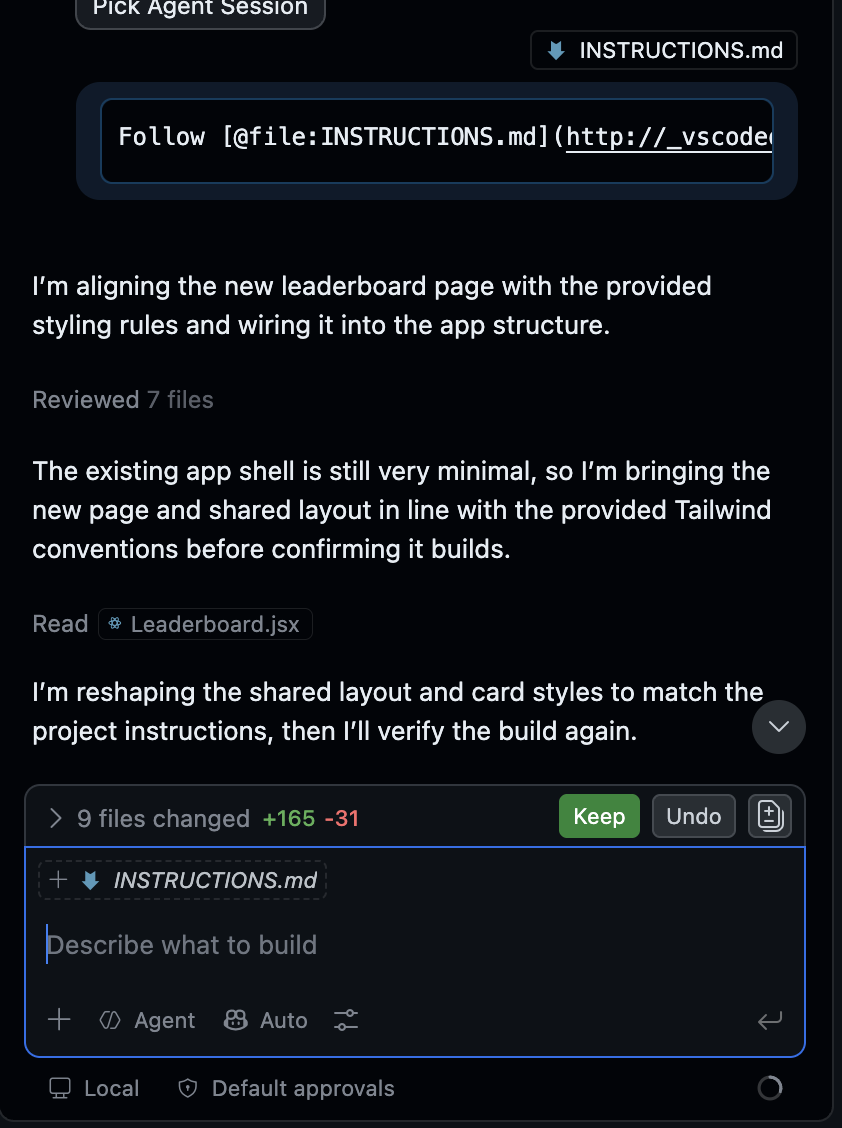
Follow INSTRUCTIONS.md. Add a Leaderboard page that ranks projects.
-
This time you're not hoping it "notices" the file. You're forcing the rules into context.
-
Codespaces / Copilot will not auto-load a random root
INSTRUCTIONS.mdthe way a real Claude Skill would. That's why we attach it on purpose. -
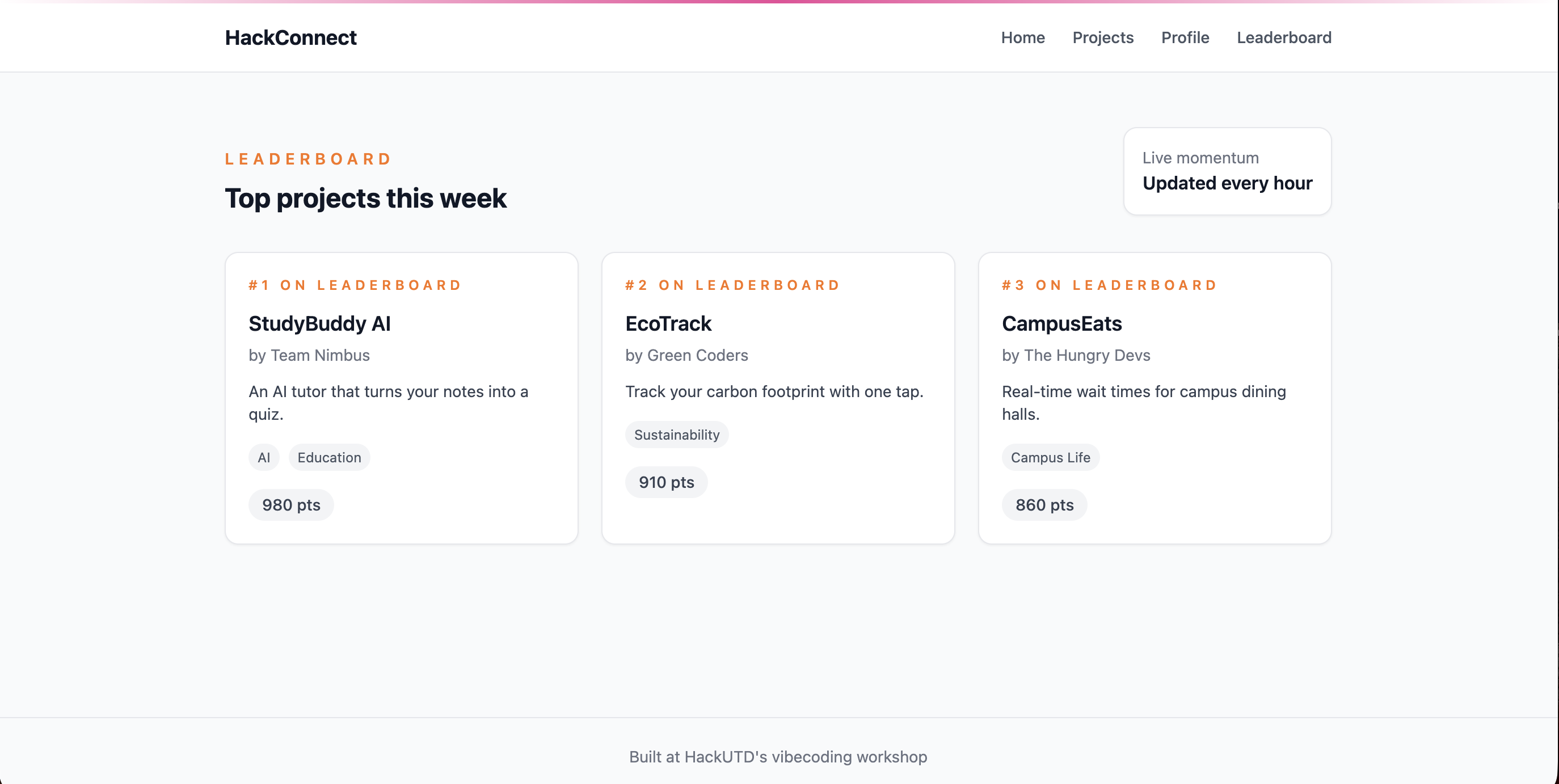
The Leaderboard should follow the written rules: Tailwind utilities, card style, gradient accent, files in
src/pages/, route inApp.jsx, link inNavbar.jsx. -
Compare Step 1 vs Step 2: same request, better consistency, only because the instructions were actually in the chat.
3. Apply the style rules to the whole site
With INSTRUCTIONS.md still attached (or re-attached), paste:
Apply these style rules to the whole site.
-
Home, Projects, Navbar, and Footer should pick up the same Tailwind look.
-
Profile / Leaderboard should stop feeling like separate inventions and start feeling like one product.
Takeaway
The rules in
INSTRUCTIONS.mdwere useless until you told the AI to use them. A Skill is the same idea, but automatic: Claude remembers and loads those rules for you in future chats. Here we simulated that by uploading the file into the root ourselves.
If you want this to happen automatically in Copilot (no upload each chat), create a .github folder at the repo root and put the same rules in .github/copilot-instructions.md. Copilot can pick that file up on its own. We used a root INSTRUCTIONS.md on purpose so you could see what it looks like when the rules are not loaded unless you attach them.
Main Demo: Giving Visual & Source Context
Goal: Show that "context" doesn't just mean pasting your own files. A screenshot or a page's raw HTML/CSS is context too, and the AI can pull one detail from a design and wire it into your site.
1. Screenshot One Piece Into the Site
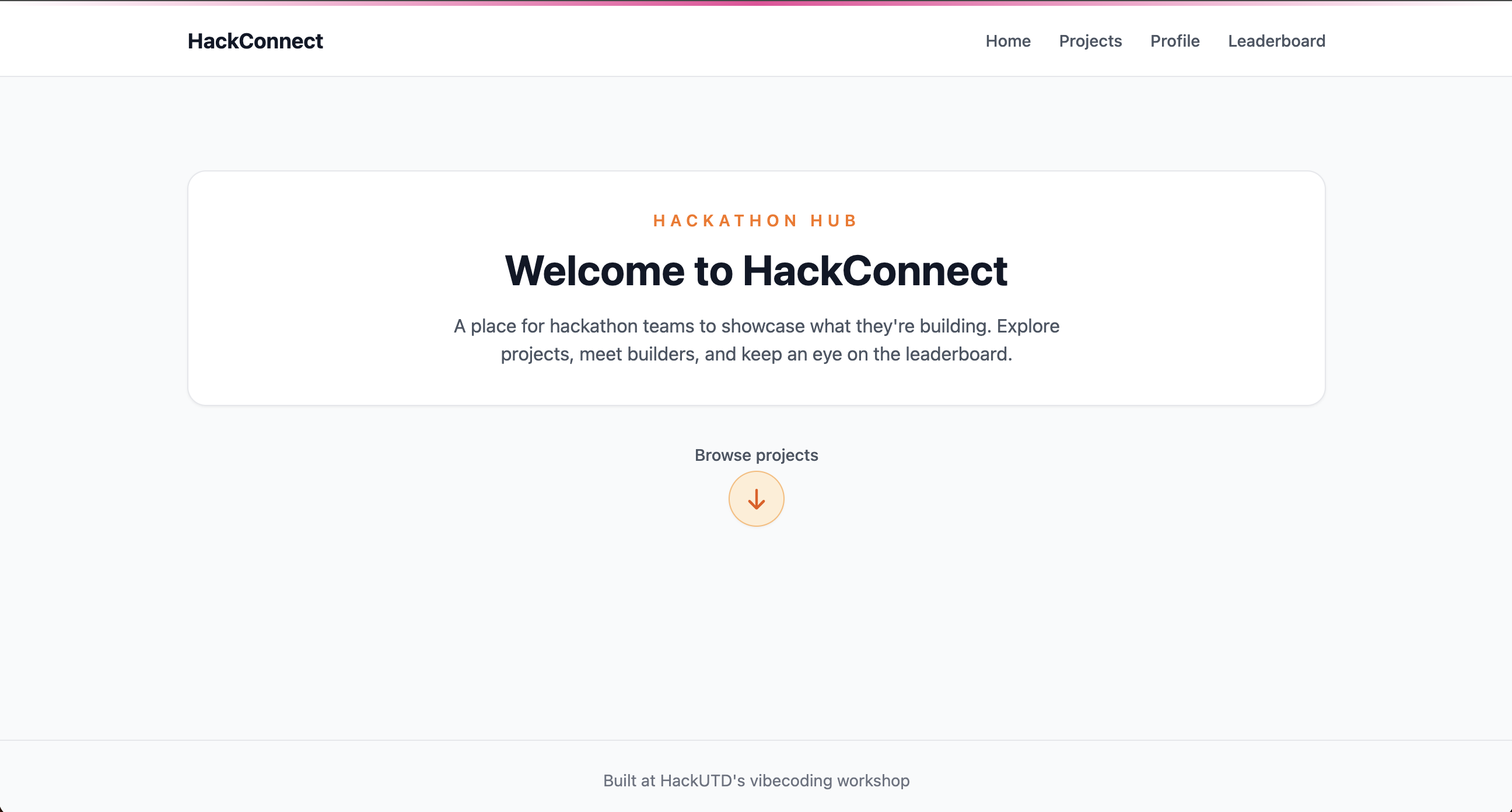
We'll use a screenshot from the HackUTD site. The detail we want is the small downward arrow under the center card: it should bounce up and down on the homepage, and clicking it should route to the Projects page.

-
In Codespaces,
upload the screenshot -
Prompt Copilot:
Here's a screenshot from a site I like. Recreate just the downward arrow under the center card on my Home page. Make it bounce / jump up and down with a CSS animation. When clicked, it should route to the Projects page (React Router link to /projects). Match my existing HackConnect style and Instructions.md where you can.
- Let Copilot apply the change, refresh, and check: does the arrow animate, and does the click go to Projects?
2. Inspect Elements and Paste the Code
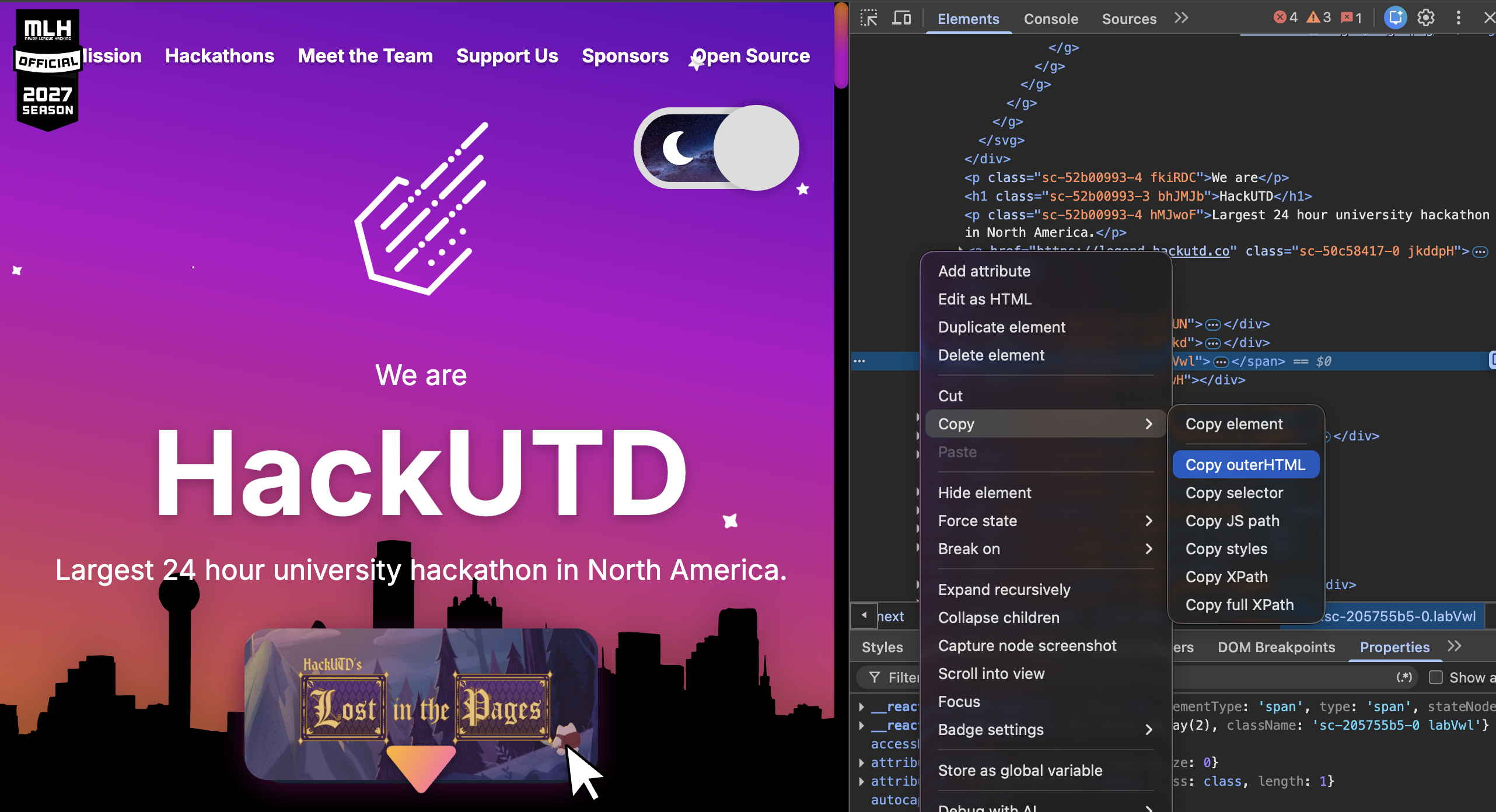
Same idea, but this time the context is real HTML from the page instead of a picture. We'll pull the decorative stars from the HackUTD site and add them to the HackConnect hero.
-
On the reference site,
right-clickthe stars (or the area around them) →Inspect -
In the Elements panel, find the node that wraps the star SVGs. Right-click it →
Copy→Copy outerHTML
- In Copilot, paste the outerHTML and prompt:
[paste the copied outerHTML]
Add these stars to my Home page hero section. Recreate them as React + Tailwind (you can keep the SVGs). Scatter them over the hero, keep them black, and match my existing HackConnect style. Don't leave them static: make them twinkle / gently float or jump around the hero (CSS animation is fine). The outerHTML is just a snapshot of positions; invent the motion.
- Check that the stars show up on the hero and are animated.
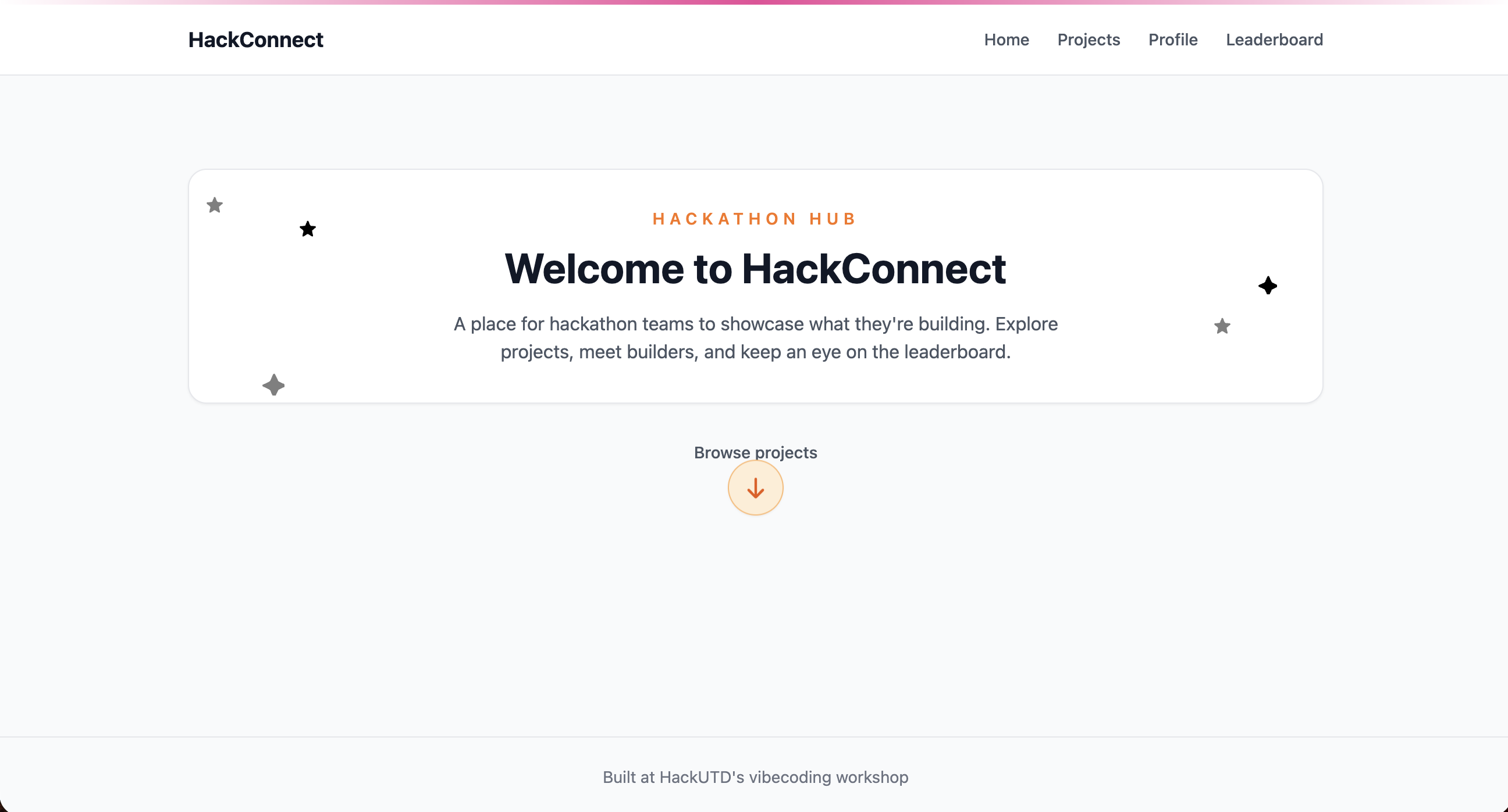
Neither of these was a written instruction. One was a screenshot of a single UI detail you liked; the other was raw HTML copied from Inspect. Context can be anything the AI can "see," not just text you type.
3. Free Build
-
Pick your own reference now!A screenshot of any site/app you like, or outerHTML copied with Inspect. -
Apply one piece of itto your copy of HackConnect: a button, the navbar, a card, an animation, stars, the whole homepage. No fixed prompt here, just practice giving good visual or source context on your own.